
This content originally appeared on Envato Tuts+ Tutorials and was authored by Andrei Marius



In the following steps, you will learn how to make a triangle in Adobe Illustrator using three different methods.
What You'll Learn in This Adobe Illustrator Tutorial
- How to make a triangle in Illustrator
- How to make a 90-degree triangle in illustrator
- How to make a perfect triangle in illustrator
- How to make a rounded triangle in illustrator
Before learning how to make a triangle in Adobe Illustrator, follow along with us over on our Envato Tuts+ YouTube channel:
You're about to learn how to draw a triangle in Illustrator. Let's get started.
1. How to Create a New Document and Set Up a Grid
Hit Control-N to create a new document. Select Pixels from the Units drop-down menu, enter 850 in the width box and 600 in the height box, and then click More Settings. Select RGB for the Color Mode, set the Raster Effects to Screen (72 ppi), and then click Create Document.


2. How to Make a Triangle in Illustrator
Making triangles in Illustrator is quite simple. Let's start with the most basic method. Select the Pen Tool (P) from your toolbar and create your triangle with three simple clicks.
Holding down the Shift key while drawing the lines will create perfectly straight lines, making it a lot easier to create a 90-degree angle in Illustrator.


3. How to Make a Right Triangle in Illustrator
Select the Rectangle Tool (M) and create a rectangle or a square. Hold down the Shift key while dragging to easily create a perfect square.
Switch to the Direct Selection Tool (A), select one of those anchor points, and remove it using the Remove Selected Anchor Point button from the control panel.
Alternatively, you can use the Delete Anchor Point Tool (-) to simply click the anchor point that you want to be removed.


4. How to Make a Perfect Triangle in Illustrator
Select the Polygon Tool and just click on your artboard. Make sure that you enter 3 in the Sides input box, set the size of the triangle that you are about to create, and click OK.
Because the Polygon Tool is built to create shapes with equal angles at their corners, you will end up with an equilateral triangle.


5. How to Make a Rounded Triangle in Illustrator
Select your triangle using the Direct Selection Tool (A), focus on the control panel, and set the Corners radius as you wish.
Alternatively, with your triangle selected, you can go to Effect > Stylize > Rounded Corners. Set the Radius as you wish, and click OK to apply the effect.


Congratulations!
Now you know how to make a triangle in Adobe Illustrator. I hope you've enjoyed this Illustrator triangle tutorial and can apply these techniques in your future projects.
You can find some great sources of inspiration at Envato Elements, with interesting solutions to improve any design.


Are You New to Illustrator?
Drawing triangles in Illustrator is a good place to start, but there are many other skills and tricks you could learn!
This free beginner's course from Dan Scott will help you learn how to easily use Adobe Illustrator and discover all its secrets. Don't worry, you don't need any design or illustration skills.
You'll start with the basic stuff and work your way through each topic step by step. If you’ve opened Illustrator and struggled with the multitude of options and commands, this course is for you!
Want to Learn More?
After drawing triangles in Illustrator, you might want to take your creative experiments to the next level. We have loads of beginners' tutorials on Envato Tuts+. Take a look!

 The A to Z of Adobe Illustrator


 10 Essential Tips & Tools All Adobe Illustrator Beginners Should Learn


 10 Illustrator Tools Every Designer Should Be Using


 Illustrator’s Pen Tool: The Comprehensive Guide


 How to Make, Save and Load Gradients in Adobe Illustrator


 A Beginner's Guide to Adobe Illustrator Patterns
 Illustrator in 60 Seconds: How to Use the Pathfinder Tool

 Illustrator in 60 Seconds: How to Use the Stroke Panel
 Illustrator in 60 Seconds: How to Use the Align Panel
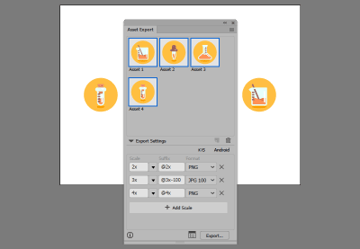 Illustrator in 60 Seconds: The Asset Export Panel

 How to Draw Stars in Illustrator


 How to Deselect in Illustrator

 Learn How to Make Clouds in Illustrator

This content originally appeared on Envato Tuts+ Tutorials and was authored by Andrei Marius

Andrei Marius | Sciencx (2020-07-31T13:41:30+00:00) How to Make a Triangle in Illustrator. Retrieved from https://www.scien.cx/2020/07/31/how-to-make-a-triangle-in-illustrator/
Please log in to upload a file.
There are no updates yet.
Click the Upload button above to add an update.