
This content originally appeared on DEV Community and was authored by Lorenzo Costa
Among the benefits to using SSH to manage remote machines, we can list:
- No need for passwords
- Encrypted communication
Many people, specially for
Windows OS, tend to recommend a GUI client calledPuTTYto set SSH connections. If you are onWindows 10,OpenSSHis already native on you computer, so do not bother installingPuTTY.
By the end of this article you will have learned how to:
- Create remote
servers - Create SSH connection from
Windows/Linuxdevices to access theseservers - Disable password authentication on the
servers, so they will become less vulnerable to brute-force attacks - Transfer files back and forth between local devices and these
servers - Host your custom website on remote
servers
Creating remote servers
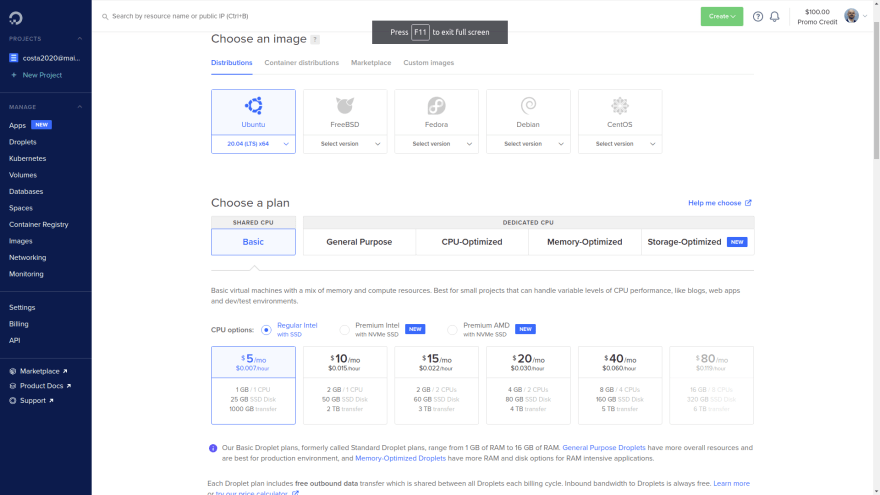
We will use Digital Ocean for this part. Creating a server is very straightforward. Look for a create droplet option there. Here we have some settings suggestions for the new server:
- Choose a image/OS: Ubuntu
- Choose plan: The cheapest one
- Choose a datacenter: Whichever is closer to you
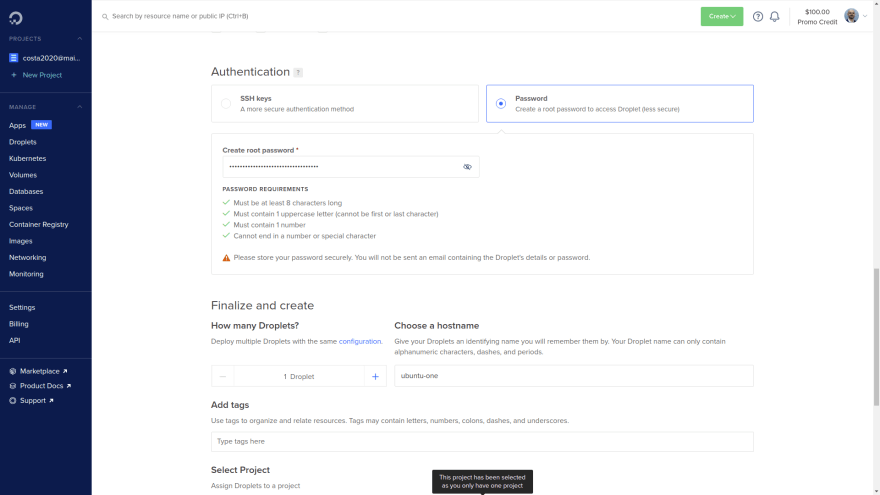
- Authentication method: Password. We will set SSH manually and then disable password authentication (save this password to a text file for now, though)
- Number of droplets (servers): 1
- Choose a hostname: ubuntu-one
- Hit the "create droplet" button
Some reference screenshots:
Once the server is created, you will have access to its IP address. Mine was 142.93.169.195, and yours will be a different one.
Check that the machine is "real" by verifying its IP address on this website:
http://ifconfig.co/?ip=142.93.169.195 (use your IP, not this one)
Accessing the remote server via cmd terminal (using password)
ssh root@142.93.169.195
Where:
root: user
142.93.169.195: server IP
You will be prompted for a message regarding ECDSA key fingerprint. Type "yes".
Once you say yes to this, notice that in
$HOME/.sshthere will be aknown_hostsfile. This file "remembers" theserversthat the currentclientdevice has previously connected to. Every time you connect to a newserver, its fingerprint will be saved here (and you will be notified of that). This is a mechanism to verify that theserveryou are connecting to is actually the one you think it is.
You will be prompted for the password (the one you set when the server was created). Paste it here.
And there it is. If your terminal changed to root@ubuntu-one, you are connected to the remote server!
Updating packages on the new server
This is optional, but recommended, as you problably will install additional softwares to this server. Run on the server:
apt update
apt upgrade
About the SSH key
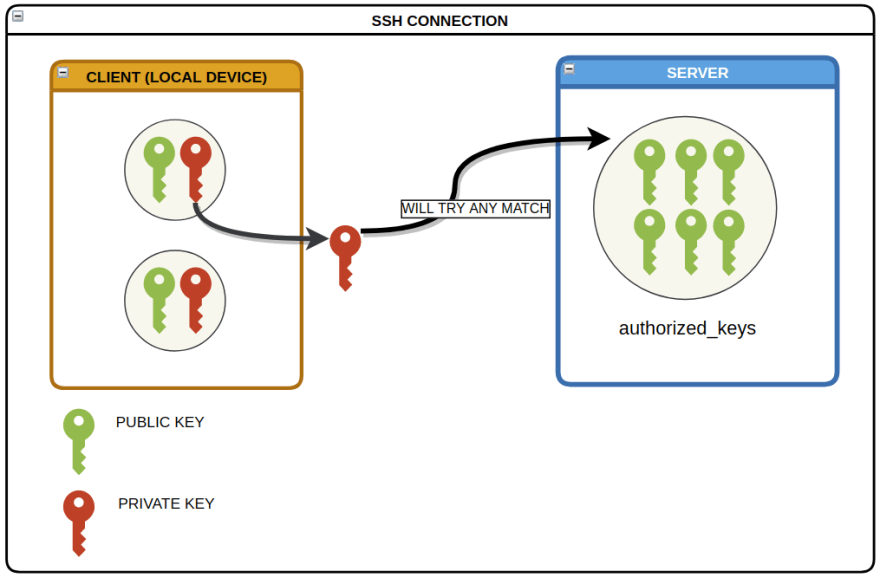
SSH is the authentication method that we will use as an alternative to using passwords when accessing remote servers. The SSH key is a 2-part key. Here's how they differ:
-
Public: It is intented to be shared, and placed on the
serveryou will connect to. -
Private: It is not supposed to be shared or even seen by anyone else. If it gets to the wrong hands, someone might be able to use it on their
clientcomputer and access theserversthe key is intended for! ⚠️
You can have multiple SSH keys stored on your device. Once you have one, send the public part to the server. There, it will be stored in a dedicated place. To establish a connection, you will select a private key and the server will check for a match with their pre-existing public keys.
Creating SSH keys
To make it easier, download and run one of the following scripts. They use the ed25519 algorithm to create the keys, since it provides a more sophisticated encryption and generates a smaller key as well.
When creating a SSH key, you will be prompted for an optional
passphrasethat will be requested when you try to use it. It is highly recommended that you set apassphrase, because if yourprivatekey gets leaked and it has nopassphrase, someone else can actually it on theirclientcomputer and very likely will be able to access theserversthat the key has access to. ?
Windows (PowerShell)
Linux (bash)
Tipically, the SSH keys are stored under the $HOME/.ssh directory (the . means that .ssh is a hidden folder), but you can have them elsewhere. I created a SSH key named costa, so here I can expect to see the 2-part key in 2 files:
-
costa(private, with no extension) -
costa.pub(public)
Accessing the public key
See its contents with:
cat costa.pub
Or using a text editor, and you wil get something like this: ssh-ed25519 AAAAC3NzaC1lZDI1NTE5AAAAIN7ioJG5Axxcksw47AujdY/Lke8ZJoWRPSDsV6pc/reK costa
Sending the public key to a remote server
Log in to the server, then cd /root/.ssh. There you will find the authorized_keys file, which is where the public keys must be inserted into. Paste it manually by opening the file using a text editor:
nano authorized_keys
Or directly using the >> command:
echo <your_public_key_content> >> authorized_keys
If you use this second option, make sure you use
>>(append) and not>(overwrite) ⚠️
Think of the authorized_keys as a vault that holds all the public keys from all devices authorized to SSH connect into this server using a SSH key.
Accessing the remote server via cmd terminal (using SSH key)
Now that the public is on the server, let's access it by using the SSH key!
First, if you are on the server, exit from it using the exit command.
Back on the client, access the server with the following command. This time you will not be prompted for the password.
ssh -i <private_key> <user>@<ip>
Notice that you don't actually need to provide the
privatekey path using-i, as the keys stored under/.sshare picked automatically. But as you begin to add more keys, chances are that at some point you will start to get errors for unmatching keys. To avoid this kind of problem, I suggest that you specify the key.
Sending files from the client to the server
Back on the client, let us say I have hello.txt in the current directory, and I want to send it to the server:
scp hello.txt root@142.93.169.195:
Where:
:: the directory where hello.txt will be saved on the server. In this case, the main/root folder.
Sending files from the server to the client
This is a little counter-intuitive, because you need to be on the
clientside. It is as if you are fetching a file previously stored on theserver.
Being on client, I would like to have hello.txt (the one already saved on the server) sent to the client. First, delete hello.txt on the client:
rm hello.txt
Now fetch hello.txt:
scp root@142.93.169.195:hello.txt .
Where:
:: indicates the file path on the server
. (at the end): the path I want the file to be saved on the client. Notice the space before the .. Now, make sure you can see hello.txt on the client.
Creating a user on the server
The following script will create a new user, grant it sudo permissions and grab a copy of the root user's authorized_keys file. Keep in mind that each user has its own authorized_keys file. ⚠️
From the client, send create-user.sh to the main folder on the server:
scp create-user.sh root@142.93.169.195:
Back on the server, you will see that create-user.sh is there. Run it to create a new user:
. create-user.sh
Notice that your terminal changed to <new_user>@ubuntu-one. Now check the contents of the authorized_keys of the <new_user>:
cat /home/<new_user>/.ssh/authorized_keys
You will see here the same public key that you added to the root user. That means that now you can SSH connect to this server as <new_user>, instead of root, by using the same private key.
Now you can replace root for <new_user> when connecting to the server.
Disabling password access on the server
This is not required, but notice that if you try to connect to the server without a SSH key, you will still be prompted for the password. We will disable that so the server will be protected against brute-force attacks using passwords. On the server, run:
sudo nano /etc/ssh/sshd_config
Notice that in order to change this file, you need
sudopermissions, hence thesudocommand.
This file contains settings regarding SSH. In its contents, look for PasswordAuthentication. It is problably set to yes, so change it to no. Also, make sure it is not commented as well (#). Save the changes and close this file.
Now you need to restart the SSH service for the changes to take effect: ⚠️
systemctl restart sshd
From this moment on, you will no longer be prompted for the password when trying to SSH connect to the server!?
The settings in the
/etc/ssh/sshd_configfile apply to all the users, as the/etcfolder in Linux has a global scope.
Disabling root access on the server
This is not required either, but keep in mind that there are many security concerns about remote connecting to a server as the root user. This user is a god mode on Linux machines, so a lot of damage can be done by this user on the server! ⚠️
To disable root access, go back to:
sudo nano /etc/ssh/sshd_config
Set PermitRootLogin to no. Now restart the SSH Daemon service again:
systemctl restart sshd
Now go ahead and try to access the server as the root user. You are not supposed to be able to log in.
Create a config file (very handy)
This file makes it easier to SSH connect to remote servers without needing to type their IP and user.
Use the following template to create a file named config, and place it in your /.ssh folder:
Host <custom_name>
    Hostname <ip>
    Port 22
    User <user>
    IdentityFile <private_key>

Host <another_custom_name>
    Hostname <ip>
    Port 22
    User <user>
    IdentityFile <private_key>
In case you are wondering about the
Port, 22 is the defaultportfor SSH connections. It can be changed on the/etc/ssh/sshd_configfile on theserver
Once this file is set, the SSH connections can be made as such:
ssh <custom_name>
In short, now you can replace the user + IP address + private key + port for merely a custom alias. Very convenient, right? ?
Hosting a website on the server
We will use apache as a HTTP server. Install it on the server:
sudo apt install apache2 -y
Now, go to your browser and visit the IP address of the server and you will see a page similar to this one:
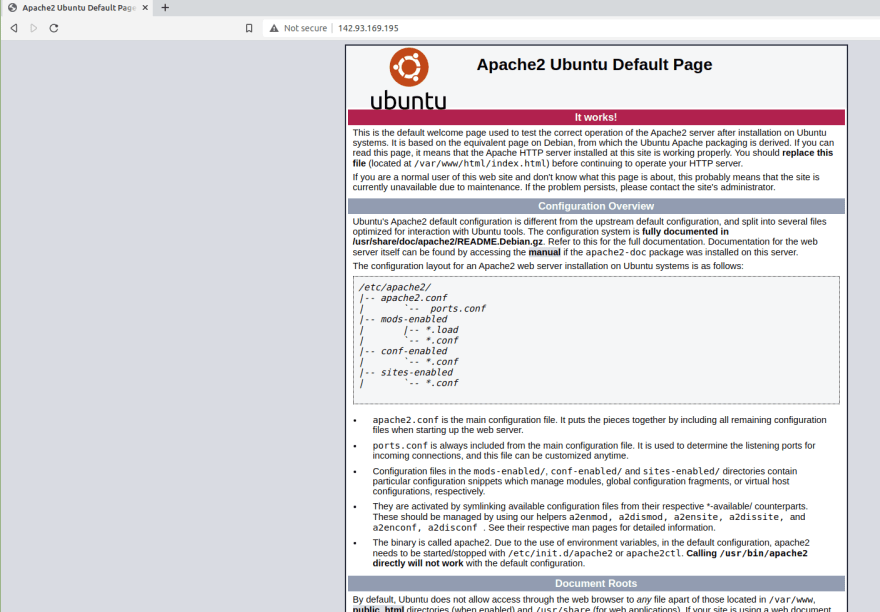
The next step is finding this page on the server and replace it with our custom website content. Back on the server, go to this directory:
cd /var/www/html
You will find a index.html file here. This is the file you are seeing on the page above.
We will use my personal portfolio website. Back on the client, download it here as a .zip file, and send it to the server (main folder):
scp portfolio-master.zip <custom_name>:
Back on the server and , having the portfolio-master.zip file there, move it to the /var/www/html/ folder:
sudo mv portfolio-master.zip /var/www/html/
Go there:
cd /var/www/html/
Install unzip to unzip this file:
sudo apt install unzip
Now you can unzip it:
unzip portfolio-master.zip
The files are in a /portfolio-master folder. We do not need the folder, only its contents. So we will move them into the current folder (/var/www/html/)
sudo mv portfolio-master/* .
Where:
*: all the files in this folder
.: the current directory
Now you are expected to see a bunch of files in /var/www/html/, including a new index.html file. Visit the IP address again on the browser and you will see my portfolio page!
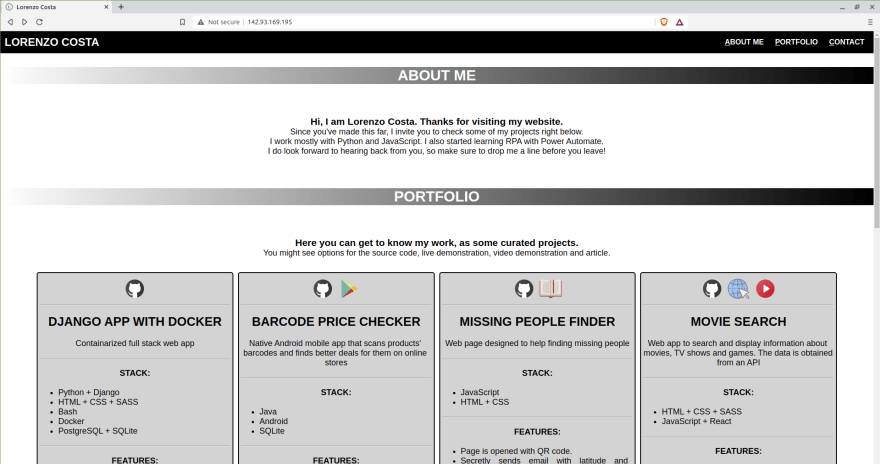
You can safely delete the /portfolio-master folder andportfolio-master.zip file, as we do not need them anymore:
sudo rm -r portfolio-master/
sudo rm portfolio-master.zip
That's it, people.
Thanks for the time reading this!
Follow me:
LinkedIn | Dev.to | Buy me a coffee | GitHub
This content originally appeared on DEV Community and was authored by Lorenzo Costa

Lorenzo Costa | Sciencx (2021-07-17T17:54:19+00:00) Managing remote servers with SSH connection: using Windows and Linux. Retrieved from https://www.scien.cx/2021/07/17/managing-remote-servers-with-ssh-connection-using-windows-and-linux/
Please log in to upload a file.
There are no updates yet.
Click the Upload button above to add an update.