
This content originally appeared on DEV Community 👩💻👨💻 and was authored by Adit-Rk20
ARCHIVING FILES
1. tar Command
You can archiving files or directory use the tar command. The tar command can create an archive file from multiple files. Archiving and compressing files or directory are useful when creating beckups and transferring data across a network.
2. Syntax and Options of the tar Command
Syntax :
$ tar [options] [archive-file] [file or directory to be archived]
Options :
-
-cor--create: Create a new archive. -
-xor--extract: Extract from an existing archive. -
-tor--list: List the table of contents of an archive. -
-vor--verbose: Show which files get archived or extracted. -
-for--file=: File name. -
-por--preserve-permissions: Preserve the permissions of files and directories when extracting an archive, without subtracting the umask. -
-zor--gzip: Use gzip compression (.tar.gz). -
-jor--bzip2: Use bzip2 compression (.tar.bz2). bzip2 typically achieves a better compression ratio than gzip. -
-Jor--xz: Use xz compression (.tar.xz). The xz compression typically achieves a better compression ratio than bzip2.
3. The tar Command Usage :
Example :
User Awill create an archive file namedfriend.tarwith the content files ofagung, iyan, and aditin theuser Ahome directory.
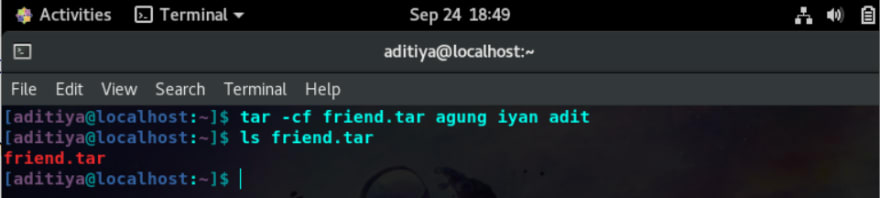
The
tarcommand can also create an archive file from a directory. Example :
User Awill create an archive file namedtjkt2.tarwith the contents file from/etcdirectory, before archiving/etcdirectory,User Amust switch torootuser, because only the root user is allowed to read all of the files present in the /etc directory.

To list the contents of the
tarfile, you can use the-toption. Example :
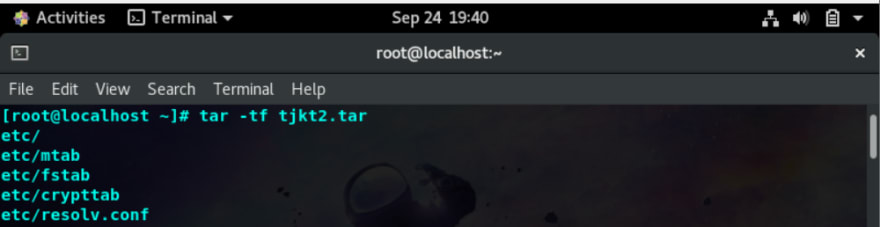
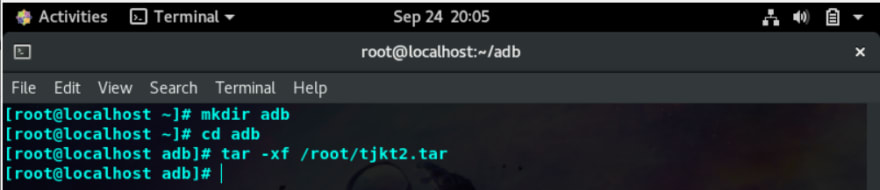
To extract archive file, you must create an empty directory so as not to overwrite other files. You can use
-xoption to extract archive file. Example :
- NOTE :
Use-poption to preserve the permissions of an archived file. Use command :
# tar -xpf [name archive-file]
4. gzip, bzip2, and xz
There are three different compression methods supported by the tar command:
1. gzip
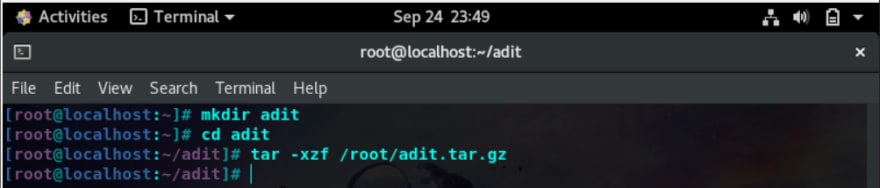
You can create a gzip compressed archive use -z option. Example :

You can extract it using the command :
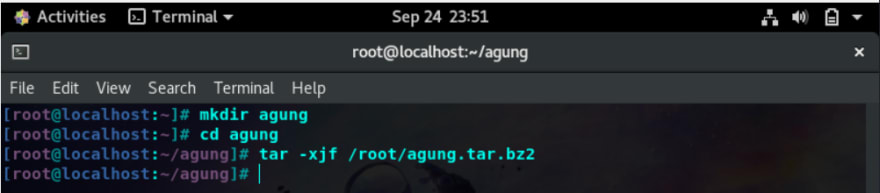
2. bzip2
You can create a bzip2 compressed archive use -j option. Example :

You can extract it using the command :
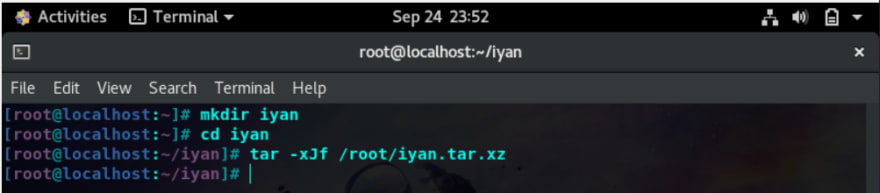
3. xz
You can create a xz compressed archive use -J option. Example :

You can extract it using the command :
SCP
Meaning of SCP
SCP (Secure Copy Protocol) is a network protocol used to securely copy files/folders between Linux (Unix) systems on a network. SCP protects your data while copying across an SSH (Secure Shell) connection by encrypting the files and the passwords.
Use of SCP
SCP can be used to :
- Copying files from a local host to a remote host. For Example :
$ scp home/adit/schedule.txt agung@10.28.140.44:/home/agung
NOTE :
- home/adit/schedule.txt : the name of the file being copied and its location.
- agung@10.28.140.44 : the username and IP address of the remote host.
- /home/agung : the location where to store the copied file.
- Copying files from a remote host to a local host. For Example :
scp iyan@80.11.205.22:/home/iyan/bicycle.txt home/adit
NOTE :
- iyan@80.11.205.22 : the username and IP address of the remote host from where the file is currently located.
- /home/iyan/bicycle.txt : the name of the file being copied and its location.
- home/adit : the location where to store the copied file.
Thank You....
This content originally appeared on DEV Community 👩💻👨💻 and was authored by Adit-Rk20

Adit-Rk20 | Sciencx (2022-09-24T18:13:29+00:00) ARCHIVING FILES AND SCP. Retrieved from https://www.scien.cx/2022/09/24/archiving-files-and-scp/
Please log in to upload a file.
There are no updates yet.
Click the Upload button above to add an update.