
This content originally appeared on Raymond Camden and was authored by Raymond Camden
It's been a few weeks since I've done this, but while looking at my new stats (https://raymondcamden.goatcounter.com/), I saw one of my old Vue.js posts getting some activity: Reading Image Sizes and Dimensions with Vue.js. In that blog post, I showed how to take a user-selected file and check the file size and dimensions of an image. As I've been slowly going through my Vue.js posts and creating Aline.js versions, I thought this would be a perfect fit.
I'm not going to repeat everything from the previous entry, but let me recap the highlights.
- Obviously, your client-side code can't go into the user's machine and read ad hoc files. What it can do is get information about a user selected file. This can be done with an
inputtag usingtype=file. - Immediately after selecting the file, your code has access to the file size.
- To get the dimensions though, you need to do a bit of work. First, create a new
Imageobject. - You need to set the source of the image to the contents of the file. This can be done by using a data URL.
- Once the image is loaded (remember, images have an
onloadevent), you can then check the dimensions.
Ok, so given the above, let's build a quick demo. First, the HTML. I'm just going to have the input field and a place to print out details about the image.
<div x-data="app"> <input type="file" x-ref="myFile" x-on:change="selectedFile" accept="image/*"><br/> <template x-if="imageLoaded"> <p> Image size is <span x-text="image.size"></span><br/> Image width and height is <span x-text="image.width"></span> / <span x-text="image.height"></span> </p> </template></div>A few things to note here. Like Vue, we sometimes need to reach out to the DOM, and like Vue, this is done via refs. You can see my setting x-ref="myFile" to gain access to the input field directly. Also, note I'm using the change event. This will fire when the user selects a file. Now let's look at the code.
document.addEventListener('alpine:init', () => { Alpine.data('app', () => ({ imageLoaded:false, image: { size:null, width:null, height:null }, selectedFile() { this.imageLoaded = false; let file = this.$refs.myFile.files[0]; if(!file || file.type.indexOf('image/') !== 0) return; this.image.size = file.size; let reader = new FileReader(); reader.readAsDataURL(file); reader.onload = evt => { let img = new Image(); img.onload = () => { this.image.width = img.width; this.image.height = img.height; this.imageLoaded = true; } img.src = evt.target.result; } reader.onerror = evt => { console.error(evt); } } }))});My Alpine app has two main variables, imageLoaded and image. The only real logic is in selectedFile. This will use $refs to grab the input field and the selected image. I then use a FileReader object to read in the bits, set it to the image, and when onload is fired, I can update my variables to the front-end displays. Given this source image for example:

If I select it, I'll see this:
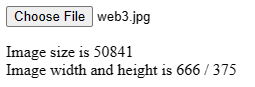
You can test this yourself using the CodePen below:
See the Pen Alpine Image by Raymond Camden (@cfjedimaster) on CodePen.
Ok, so as I did in the previous post, let's consider a simple example that adds validation. Specifically - a max file size, a max width, and a max height. The HTML is mostly the same except now I show an error on a validation failure:
<div x-data="app"> <input type="file" x-ref="myFile" x-on:change="selectedFile" accept="image/*"><br/> <template x-if="imageError"> <p class="imageError" x-text="imageError"> </p> </template></div>In the JavaScript, I added constants for my max values:
const MAX_SIZE = 100000;const MAX_WIDTH = 500;const MAX_HEIGHT = 300;And here's the Alpine app itself:
document.addEventListener('alpine:init', () => { Alpine.data('app', () => ({ imageError:'', image: { size:null, width:null, height:null }, selectedFile() { this.imageError = ''; let file = this.$refs.myFile.files[0]; if(!file || file.type.indexOf('image/') !== 0) return; this.image.size = file.size; if(this.image.size > MAX_SIZE) { this.imageError = `The image file size (${this.image.size}) is too much (max is ${MAX_SIZE}).`; return; } let reader = new FileReader(); reader.readAsDataURL(file); reader.onload = evt => { let img = new Image(); img.onload = () => { this.image.width = img.width; this.image.height = img.height; if(this.image.width > MAX_WIDTH) { this.imageError = `The image width (${this.image.width}) is too much (max is ${MAX_WIDTH}).`; return; } if(this.image.height > MAX_HEIGHT) { this.imageError = `The image height (${this.image.height}) is too much (max is ${MAX_HEIGHT}).`; return; } } img.src = evt.target.result; } reader.onerror = evt => { console.error(evt); } } }))});For the most part, this is the same, with the only change being that now I check the various properties and set a new variable, imageError, when something fails validation. You can test this below:
See the Pen Alpine Image validation by Raymond Camden (@cfjedimaster) on CodePen.
I'll repeat myself, which my readers know I like to do, but the more I use Alpine, the more it just clicks with me.
This content originally appeared on Raymond Camden and was authored by Raymond Camden

Raymond Camden | Sciencx (2022-12-08T18:00:00+00:00) Reading Image Sizes and Dimensions with Alpine.js. Retrieved from https://www.scien.cx/2022/12/08/reading-image-sizes-and-dimensions-with-alpine-js/
Please log in to upload a file.
There are no updates yet.
Click the Upload button above to add an update.