
This content originally appeared on Level Up Coding - Medium and was authored by Odunayo Babatope

Retrieval Augmented Generation (RAG) has addressed many challenges we face in the business world today. With RAG, we can integrate external data sources with large language models to enhance the capabilities of these models. These data sources can include databases, research papers, spreadsheets, etc.
In this tutorial, I will walk you through the process of building a PDF-based RAG chatbot that utilizes the GPT model. This chatbot will allow users to interact with documents and extract relevant insights from PDFs in real-time. The solution will be implemented with Streamlit, and it will use a persistent storage system by using RedisStore and PGVector for the embeddings, to ensure that data is retained and can be accessed efficiently over time.
Libraries
- unstructured - for extracting texts and tables from PDFs
- pgvector - for vector storage
- redis- stores and retrieves raw PDFs
- langchain - orchestrates retrieval-augmented generation (RAG) workflow
- openai - uses GPT model to generate responses based on retrieved context
RAG System Workflow
This figure highlights each stage of the RAG pipeline. The workflow begins with our pdf document, which is processed and chunked by unstructured library and we separate this into text and tables. We took a summary of both text and tables before storing them in vector store and parsing to retriever. The result from the retriever is what we send as context to our GPT model. So, whenever a user asks a question from the pdf, the context is what the GPT model uses before it generates a response.

Install Dependencies and Set Up
The first step before writing our code is to install all the necessary libraries. This includes Unstructured, LangChain-OpenAI, PGVector, Redis, Streamlit, etc.
import os, json, time, uuid, logging, hashlib, tempfile, shutil
from pathlib import Path
from base64 import b64decode
import torch, redis, streamlit as st

from dotenv import load_dotenv; load_dotenv()

from IPython.display import display, HTML
from database import COLLECTION_NAME, CONNECTION_STRING
from langchain_openai import ChatOpenAI, OpenAIEmbeddings
from langchain_core.messages import SystemMessage, HumanMessage
from langchain_core.prompts import ChatPromptTemplate
from langchain_core.output_parsers import StrOutputParser
from langchain.schema.runnable import RunnablePassthrough, RunnableLambda
from langchain.schema.document import Document
from langchain.retrievers.multi_vector import MultiVectorRetriever
from langchain_postgres.vectorstores import PGVector
from langchain_community.utilities.redis import get_client
from langchain_community.storage import RedisStore
from unstructured.partition.pdf import partition_pdf
Set up OpenAI API Key
Before accessing the GPT model, we need to create an API key through OpenAI’s official platform. Once we obtain the API key, we store it securely in a .env file to keep it private. After that, we load the key into our coding environment using the following method;
.env
OPENAI_API_KEY = sk-XXXXXXXXXXXXX
RAG_with_streamlit.py
from dotenv import load_dotenv
load_dotenv()
Setting Up a PGVector Connection
We will store our embeddings in PGVector(a PostgreSQL extension for vector similarity search). To set this up, we must installlangchain_postgres and then launch a PostgreSQL container for PGVector using docker. This allows us to efficiently store and retrieve vector embeddings for our retrieval-augmented generation (RAG) system.
pip install -U langchain_postgres
%docker run --name pgvector-container -e POSTGRES_USER=langchain -e POSTGRES_PASSWORD=langchain -e POSTGRES_DB=langchain -p 6024:5432 -d pgvector/pgvector:pg16
Data Extraction with Unstructured
After all the installations and setup, we can now extract our data. The unstructured library is what we use to load the PDF to extract our text and tables. The partition_pdf function handles this extraction by taking the necessary arguments to ensure accurate data retrieval. The extracted content is returned as CompositeElement and table elements, which contain chunked data.
#Data Loading
def load_pdf_data(file_path):
    logging.info(f"Data ready to be partitioned and loaded ")
    raw_pdf_elements = partition_pdf(
        filename=file_path,

        infer_table_structure=True,
        strategy = "hi_res",

        extract_image_block_types = ["Image"],
        extract_image_block_to_payload  = True,

        chunking_strategy="by_title",
        mode='elements',
        max_characters=10000,
        new_after_n_chars=5000,
        combine_text_under_n_chars=2000,
        image_output_dir_path="data/",
    )
    logging.info(f"Pdf data finish loading, chunks now available!")
    return raw_pdf_elements
Summarize Chunked Data
We will generate summaries for both text and table data using GPT-4o-mini. While summarization is not strictly necessary, it helps condense large chunks of extracted information into concise, meaningful insights. This can improve retrieval efficiency when we use the multi-vector retriever.
# Summarize extracted text and tables using LLM
def summarize_text_and_tables(text, tables):
    logging.info("Ready to summarize data with LLM")
    prompt_text = """You are an assistant tasked with summarizing text and tables. \

                    You are to give a concise summary of the table or text and do nothing else.
                    Table or text chunk: {element} """
    prompt = ChatPromptTemplate.from_template(prompt_text)
    model = ChatOpenAI(temperature=0.6, model="gpt-4o-mini")
    summarize_chain = {"element": RunnablePassthrough()}| prompt | model | StrOutputParser()
    logging.info(f"{model} done with summarization")
    return {
        "text": summarize_chain.batch(text, {"max_concurrency": 5}),
        "table": summarize_chain.batch(tables, {"max_concurrency": 5})
    }
Initializing PGVector and Retriever
In this step, we set up PGVector for storing vector embeddings using OpenAI’s embedding model. We define the connection string and collection name to manage and retrieve embeddings efficiently. To store raw PDF documents, we use RedisStore, which provides persistent storage. Also, our MultiVectorRetrieval integrates the vector store and document store, enabling efficient retrieval of relevant documents.
def initialize_retriever():

    store = RedisStore(client=client)
    id_key = "doc_id"
    vectorstore = PGVector(
            embeddings=OpenAIEmbeddings(),
            collection_name=COLLECTION_NAME,
            connection=CONNECTION_STRING,
            use_jsonb=True,
            )
    retrieval_loader = MultiVectorRetriever(vectorstore=vectorstore, docstore=store, id_key="doc_id")
    return retrieval_loader
Add Vectors and Documents to Store
After the initialization, this is where we add our documents to vector store and Redis store. For indexing and efficient retrieval, a doc_id is created to link both the vectors and raw files. When a user submits a query, the system retrieves a summarized response from the vector store. The doc_id associated with the summary then points back to the full document in Redis, allowing us to fetch the complete text, which serves as our context.
def store_docs_in_retriever(text, text_summary, table, table_summary, retriever):
    """Store text and table documents along with their summaries in the retriever."""

    def add_documents_to_retriever(documents, summaries, retriever, id_key = "doc_id"):
        """Helper function to add documents and their summaries to the retriever."""
        if not summaries:
            return None, []

        doc_ids = [str(uuid.uuid4()) for _ in documents]
        summary_docs = [
            Document(page_content=summary, metadata={id_key: doc_ids[i]})
            for i, summary in enumerate(summaries)
        ]

        retriever.vectorstore.add_documents(summary_docs, ids=doc_ids)
        retriever.docstore.mset(list(zip(doc_ids, documents)))

# Add text, table, and image summaries to the retriever
    add_documents_to_retriever(text, text_summary, retriever)
    add_documents_to_retriever(table, table_summary, retriever)
    return retriever
Parse Retrieval Output
The function below iterates through the retrieved data and checks if any element is in byte format. If so, it decodes it using "utf-8", ensuring all elements are returned as strings.
# Parse the retriever output
def parse_retriver_output(data):
    parsed_elements = []
    for element in data:
        # Decode bytes to string if necessary
        if isinstance(element, bytes):
            element = element.decode("utf-8")

        parsed_elements.append(element)

    return parsed_elements
Chat With LLM
The retrieved context we got earlier is what we send to our Large language model. To achieve this, we use the GPT-4o-mini as our model and create a RAG Chain. In this chain, we combine the context and question into a prompt, which is then sent to the model and then we use StrOutputParser() to format our response.
def chat_with_llm(retriever):

    logging.info(f"Context ready to send to LLM ")
    prompt_text = """
                You are an AI Assistant tasked with understanding detailed
                information from text and tables. You are to answer the question based on the
                context provided to you. You must not go beyond the context given to you.

                Context:
                {context}

                Question:
                {question}
                """

    prompt = ChatPromptTemplate.from_template(prompt_text)
    model = ChatOpenAI(temperature=0.6, model="gpt-4o-mini")

    rag_chain = ({
       "context": retriever | RunnableLambda(parse_retriver_output), "question": RunnablePassthrough(),
        }
        | prompt
        | model
        | StrOutputParser()
        )

    logging.info(f"Completed! ")

    return rag_chain
Build PDF Chat APP With Streamlit
Now, we can build our Streamlit application to demo everything we’ve implemented on a graphical user interface.
Generate temporary file path
To create our chat app, we first need to set up a temporary directory where we can upload a PDF file. With this directory, we can generate a file_path, which we send to our partition_pdf function to extract text and tables from the PDF.
def _get_file_path(file_upload):

    temp_dir = "temp"
    os.makedirs(temp_dir, exist_ok=True)  # Ensure the directory exists

    if isinstance(file_upload, str):
        file_path = file_upload  # Already a string path
    else:
        file_path = os.path.join(temp_dir, file_upload.name)
        with open(file_path, "wb") as f:
            f.write(file_upload.getbuffer())
        return file_path
Generate Unique Hash for PDF Files
This step is optional, what is done here is to generate a unique SHA-256 hash for each PDF File, which is to prevent duplicate file uploads by checking against existing hashes.
# Generate a unique hash for a PDF file
def get_pdf_hash(pdf_path):
    """Generate a SHA-256 hash of the PDF file content."""
    with open(pdf_path, "rb") as f:
        pdf_bytes = f.read()
    return hashlib.sha256(pdf_bytes).hexdigest()
Process PDF Files
Here, we call our previous functions such as initialize_retriever and get_pdf_hash. We use the pdf_hash to check if the file exists. If it does, we load the data from the vector store and Redis store, and the retriever generates context based on the user’s question using the loaded data. However, if the file does not exist, it defaults to the first step: extracting text and tables, summarizing it, and storing the data in both the Redis store and Vector store.
# Process uploaded PDF file
def process_pdf(file_upload):
    print('Processing PDF hash info...')

    file_path =  _get_file_path(file_upload)
    pdf_hash = get_pdf_hash(file_path)

    load_retriever = initialize_retriever()
    existing = client.exists(f"pdf:{pdf_hash}")
    print(f"Checking Redis for hash {pdf_hash}: {'Exists' if existing else 'Not found'}")

    if existing:
        print(f"PDF already exists with hash {pdf_hash}. Skipping upload.")
        return load_retriever

    print(f"New PDF detected. Processing... {pdf_hash}")

    pdf_elements = load_pdf_data(file_path)

    tables = [element.metadata.text_as_html for element in
               pdf_elements if 'Table' in str(type(element))]

    text = [element.text for element in pdf_elements if
            'CompositeElement' in str(type(element))]

    summaries = summarize_text_and_tables(text, tables)
    retriever = store_docs_in_retriever(text, summaries['text'], tables,  summaries['table'], load_retriever)

    # Store the PDF hash in Redis
    client.set(f"pdf:{pdf_hash}", json.dumps({"text": "PDF processed"}))

    # Debug: Check if Redis stored the key
    stored = client.exists(f"pdf:{pdf_hash}")
    # #remove temp directory
    # shutil.rmtree("dir")
    print(f"Stored PDF hash in Redis: {'Success' if stored else 'Failed'}")
    return retriever
Invoke Chat
So, this is where we invoke our chat, by calling our earlier function, chat_with_llm, which takes in the retriever as context and generates our response.
#Invoke chat with LLM based on uploaded PDF and user query
def invoke_chat(file_upload, message):

    retriever = process_pdf(file_upload)
    rag_chain = chat_with_llm(retriever)
    response = rag_chain.invoke(message)
    response_placeholder = st.empty()
    response_placeholder.write(response)
    return response
Streamlit Chat App
To run this entire application with Streamlit, use the following command:
streamlit run RAG_with_streamlit.py
def main():

    st.title("PDF Chat Assistant ")
    logging.info("App started")

    if 'messages' not in st.session_state:
        st.session_state.messages = []


    file_upload = st.sidebar.file_uploader(
    label="Upload", type=["pdf"],
    accept_multiple_files=False,
    key="pdf_uploader"
    )

    if file_upload:
        st.success("File uploaded successfully! You can now ask your question.")

    # Prompt for user input
    if prompt := st.chat_input("Your question"):
        st.session_state.messages.append({"role": "user", "content": prompt})

    # Display chat history
    for message in st.session_state.messages:
        with st.chat_message(message["role"]):
            st.write(message["content"])

    # Generate response if last message is not from assistant
    if st.session_state.messages and st.session_state.messages[-1]["role"] != "assistant":
        with st.chat_message("assistant"):
            start_time = time.time()
            logging.info("Generating response...")
            with st.spinner("Processing..."):
                user_message = " ".join([msg["content"] for msg in st.session_state.messages if msg])
                response_message = invoke_chat(file_upload, user_message)

                duration = time.time() - start_time
                response_msg_with_duration = f"{response_message}\n\nDuration: {duration:.2f} seconds"

                st.session_state.messages.append({"role": "assistant", "content": response_msg_with_duration})
                st.write(f"Duration: {duration:.2f} seconds")
                logging.info(f"Response: {response_message}, Duration: {duration:.2f} s")
Streamlit Chat App Interface
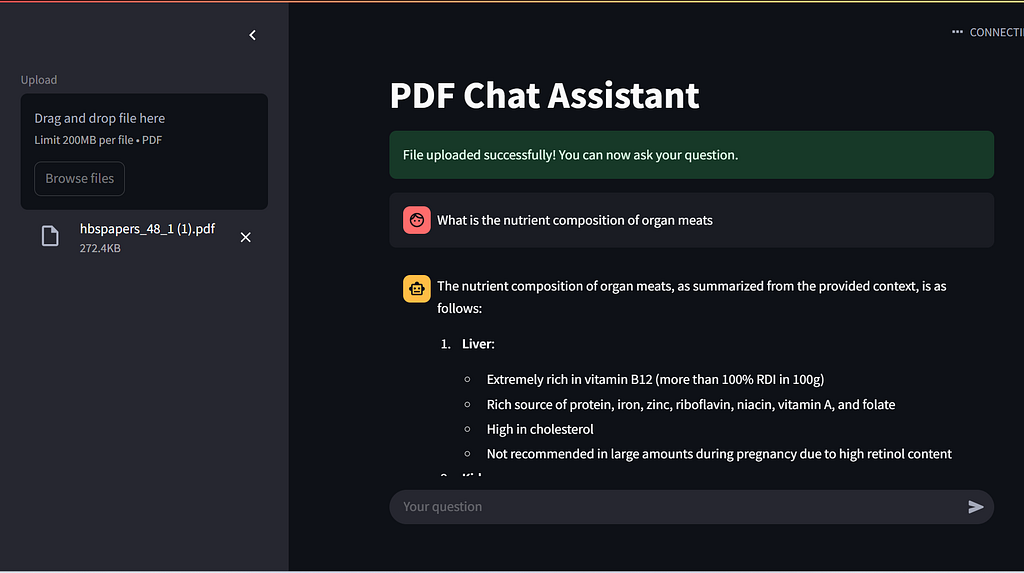
The image below shows our PDF RAG application built with Streamlit. You can see that a PDF is uploaded, and based on its content, the query sent to the chat is answered using the retrieved information.
Check this GitHub repository for the full code.
Thanks for reading my article. I hope you have found this useful.
See you next time.
Building a PDF RAG Chatbot: Langchain, OpenAI, PGVector, RediStore, and Streamlit was originally published in Level Up Coding on Medium, where people are continuing the conversation by highlighting and responding to this story.
This content originally appeared on Level Up Coding - Medium and was authored by Odunayo Babatope

Odunayo Babatope | Sciencx (2025-03-19T14:13:58+00:00) Building a PDF RAG Chatbot: Langchain, OpenAI, PGVector, RediStore, and Streamlit. Retrieved from https://www.scien.cx/2025/03/19/building-a-pdf-rag-chatbot-langchain-openai-pgvector-redistore-and-streamlit/
Please log in to upload a file.
There are no updates yet.
Click the Upload button above to add an update.